




How to Fix Slow DNS Lookup: 7 Common Causes and Their Solutions
How to fix slow DNS lookup: flush your cache, restart the router, and switch to a faster resolver. See the 7 common causes and the exact fix for each.

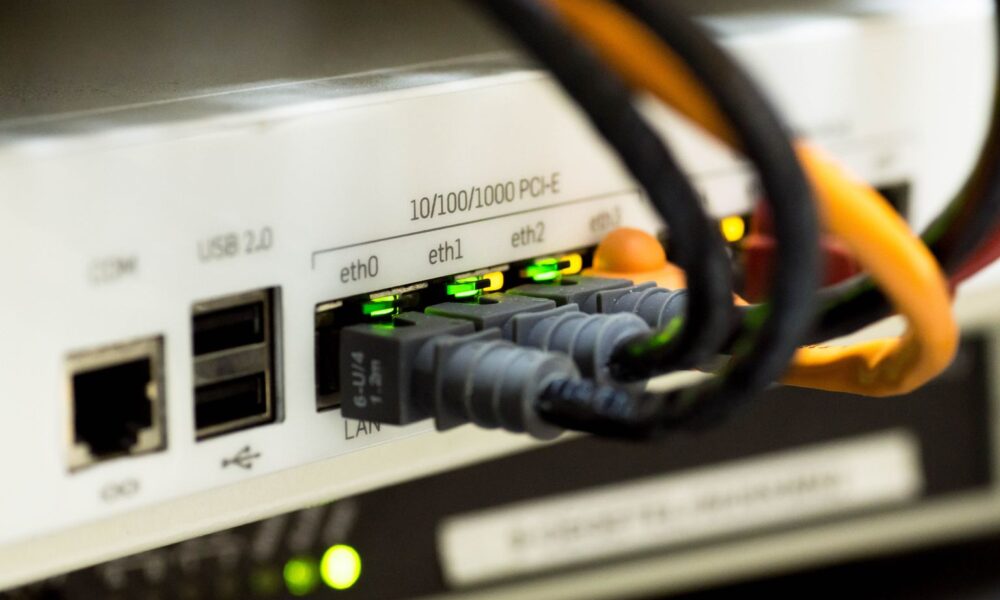
If websites hang for a second or two before they start loading, but downloads run at full speed once they begin, your connection is probably fine and DNS is the bottleneck. The quickest way to fix slow DNS lookup is to flush your DNS cache, restart your router, and switch to a fast public resolver such as Cloudflare (1.1.1.1) or Google (8.8.8.8). That clears up most cases in under ten minutes. When it doesn’t, the cause is usually something more specific, like a dead DNS entry left behind by a VPN, a router that’s struggling to forward requests, or IPv6 lookups that time out before Windows falls back to IPv4. Below are the seven most common causes, how to spot each one, and the exact steps to fix it on Windows, Mac, and Linux.
Table Of Content
- What is a DNS lookup and why does it slow down?
- How do you know if DNS lookup is slow?
- What are the 7 common causes of slow DNS lookup?
- 1. Your ISP’s DNS server is slow or overloaded
- 2. Your DNS cache is stale or corrupted
- 3. Your router is a slow middleman
- 4. Dead or misordered DNS servers on your device
- 5. A VPN, firewall, or antivirus is intercepting DNS
- 6. IPv6 lookups are timing out
- 7. Malware or hijacked DNS settings
- Which DNS server is the fastest?
- Does changing DNS make your internet faster?
- Conclusion
- Frequently Asked Questions
What is a DNS lookup and why does it slow down?
A DNS lookup is the step where your device turns a name like thetechneo.com into the IP address it connects to. The Domain Name System works like a phone book for the internet: your computer asks a resolver (usually your router or your ISP’s server), the resolver finds the answer, and your browser can finally open a connection.
Most of the time this takes a few milliseconds because the answer is already cached. The trouble starts on the first visit to a site, or when something in that chain is slow, overloaded, or misconfigured. Every page you open also pulls in fonts, scripts, ads, and images from other domains, so one slow resolver can add a noticeable delay to every new page.
How do you know if DNS lookup is slow?

You know DNS is the problem when the pause happens before anything appears on screen, and a speed test still shows normal download numbers. Your browser often hints at it too, with a “Resolving host…” message in the bottom corner.
To confirm it, time a real lookup:
- Windows (PowerShell):
Measure-Command { Resolve-DnsName example.com }shows how long the lookup took in milliseconds. - Mac or Linux (Terminal):
dig example.comand read the “Query time” line near the bottom. - Any browser: open DevTools (F12), go to the Network tab, click a request, and look at the Timing panel. “DNS Lookup” is listed as its own bar.
As a rough guide, an uncached lookup under about 50 ms won’t be noticeable. Once you regularly see a few hundred milliseconds, or occasional multi-second spikes, it’s worth fixing. Test a site you haven’t visited before, because a cached result will show close to 0 ms and tell you nothing.
What are the 7 common causes of slow DNS lookup?
Work through these in order. The first three fix the majority of cases, and each one takes only a few minutes.
| # | Cause | Quick sign | Fix |
|---|---|---|---|
| 1 | Slow or overloaded ISP DNS server | Worse in the evening, every new site pauses | Switch to Cloudflare, Google, or Quad9 DNS |
| 2 | Stale or corrupted DNS cache | Some sites fail or load an old version | Flush the OS and browser DNS cache |
| 3 | Router acting as a slow DNS proxy | Fixed by a reboot, then comes back | Restart, update firmware, set DNS on the router |
| 4 | Dead or misordered DNS servers | Old VPN or office addresses in ipconfig /all | Remove them, keep only working resolvers |
| 5 | VPN, firewall, or antivirus intercepting DNS | Fast as soon as the VPN or web shield is off | Closer VPN server, split tunneling, adjust the filter |
| 6 | IPv6 lookups timing out | Delay of a second or more on many sites | Check test-ipv6.com, fix IPv6 on the router |
| 7 | Malware or hijacked DNS settings | DNS servers you never set | Malware scan, reset DNS, change router password |
1. Your ISP’s DNS server is slow or overloaded
By default, your router hands out your internet provider’s DNS servers. Some are quick. Plenty are not, especially in the evening when everyone in your area is online.
How to fix it: switch to a public resolver. Popular options are Cloudflare (1.1.1.1 and 1.0.0.1), Google Public DNS (8.8.8.8 and 8.8.4.4), and Quad9 (9.9.9.9 and 149.112.112.112).
On Windows 11, open Settings > Network & internet, select your Wi-Fi or Ethernet connection (for Wi-Fi, open Hardware properties), click Edit next to “DNS server assignment,” choose Manual, turn on IPv4, and enter a preferred and alternate address. On a Mac, go to System Settings > Network > [your connection] > Details > DNS, click the + button, and add the addresses.
Don’t assume the most famous resolver is the fastest for you. Speed depends on how close the nearest server is to where you live. If you want proof rather than a guess, the free GRC DNS Benchmark tool for Windows tests dozens of resolvers from your own connection and ranks them.
2. Your DNS cache is stale or corrupted
Your operating system and browser both keep a cache of recent lookups. When a cached entry goes bad, or the cache gets bloated after weeks of uptime, lookups can stall or point to the wrong address.
How to fix it: flush the cache.
- Windows: open Command Prompt as administrator and run
ipconfig /flushdns. - macOS: run
sudo dscacheutil -flushcache; sudo killall -HUP mDNSResponderin Terminal. - Linux (systemd): run
resolvectl flush-caches. - Chrome and Edge: visit
chrome://net-internals/#dns(oredge://net-internals/#dns) and click Clear host cache.
Flushing doesn’t delete any of your files or saved passwords. The next visit to each site will do a fresh lookup, and after that it’s cached again.
3. Your router is a slow middleman
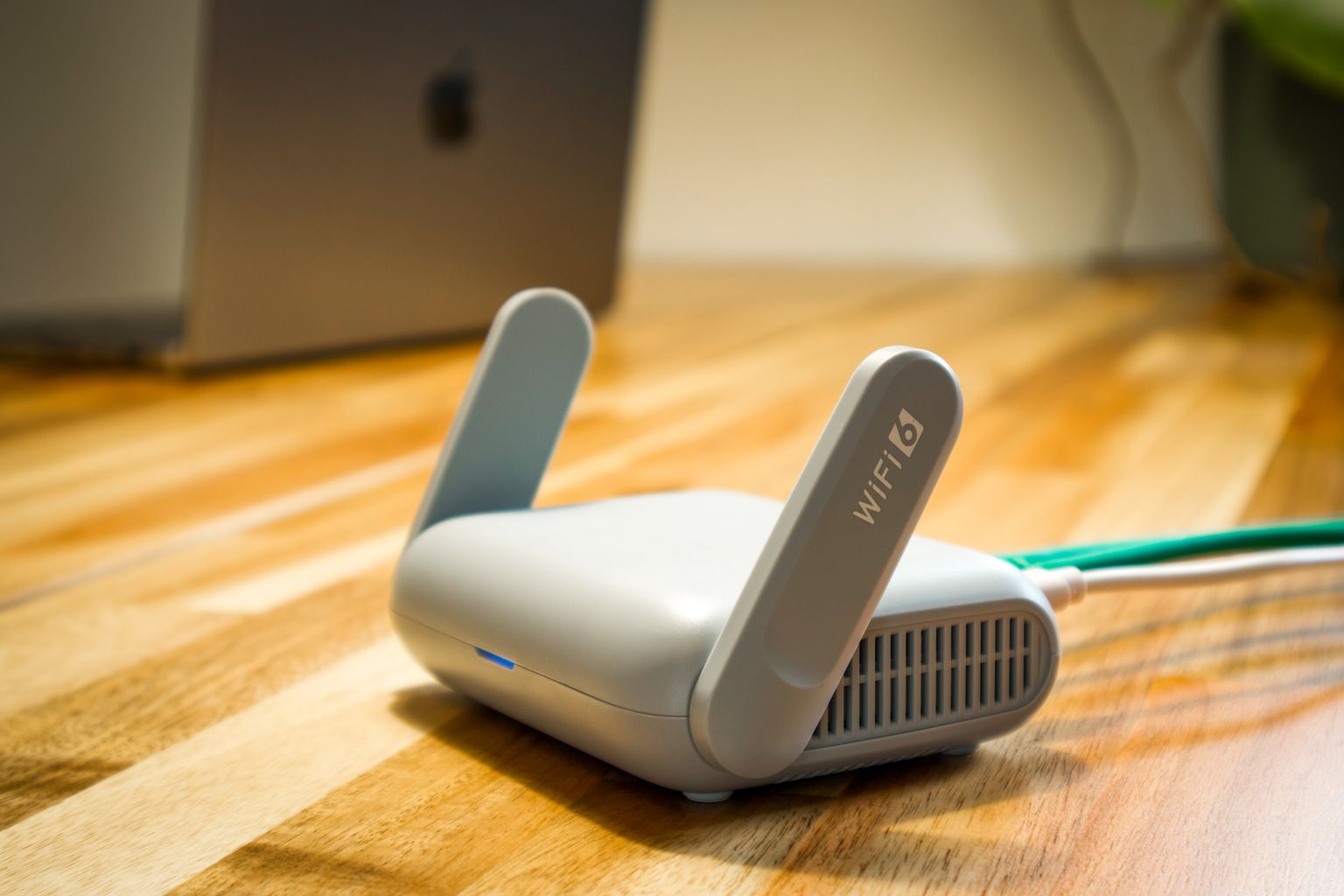
Most home routers act as a DNS proxy. Your devices ask the router, and the router forwards the question upstream. Cheap or older routers have very little memory for this job, and after days of uptime their DNS forwarder can get sluggish or start dropping requests. Outdated firmware makes it worse.
How to fix it: restart the router first (unplug it for 30 seconds). If that helps but the problem keeps coming back, log in to the router’s admin page and check for a firmware update. While you’re there, set the public DNS servers from cause #1 in the router’s WAN or DHCP settings, so every device on your network uses them without changing each one by hand. If the slowdown only shows up on Wi-Fi and disappears on a cable, look at your Wi-Fi signal before blaming DNS. A struggling router causes other odd symptoms too, and it’s one of the most common reasons a printer shows as offline even when it’s switched on.
4. Dead or misordered DNS servers on your device
If your network adapter lists a DNS server that no longer answers, your computer waits for it to time out before trying the next one. That timeout feels exactly like slow DNS. Old VPN clients and manual settings from a previous network are the usual culprits.
How to fix it: check which DNS servers your device is using. On Windows, run ipconfig /all or, in PowerShell, Get-DnsClientServerAddress. On a Mac, run scutil --dns. If you see addresses you don’t recognize, or a private address from an old office or VPN network, remove them and leave only your router or the public resolvers you chose.
5. A VPN, firewall, or antivirus is intercepting DNS
VPNs route your DNS requests through their own servers, often in another country. Some security suites also inspect every lookup or run their own “web protection” DNS filter. Both add delay, and a poorly configured one can add a lot.
How to fix it: test with the VPN disconnected and the web-filtering feature of your antivirus paused for a minute. If lookups suddenly get fast, you’ve found it. Pick a VPN server closer to you, check whether your VPN lets you choose its DNS servers, or use split tunneling so local traffic skips the tunnel. For security software, look for a setting called something like “safe browsing DNS” or “web shield” and see whether turning off just that part solves it.
6. IPv6 lookups are timing out
Modern operating systems ask for both an IPv6 (AAAA) and an IPv4 (A) address. If your network advertises IPv6 but it doesn’t work properly, those IPv6 lookups or connections can hang until they fail, and only then does your device fall back to IPv4. The result is a delay of a second or more on many sites.
How to fix it: visit test-ipv6.com to see whether your IPv6 setup works. If it reports problems, the proper fix is in the router (update firmware or correct the IPv6 settings, or ask your ISP). As a temporary test on Windows, you can uncheck Internet Protocol Version 6 (TCP/IPv6) in your adapter’s properties and see whether pages load faster. Microsoft doesn’t recommend leaving IPv6 disabled long term, so treat this as a diagnosis rather than the final fix.
7. Malware or hijacked DNS settings
Some malware and adware quietly change your DNS servers so that requests go through a server the attacker controls. That server is often slow, and it can also redirect you to fake pages. Routers with default admin passwords are a common target for the same trick.
How to fix it: if cause #4 turned up DNS servers you never set, take it seriously. Run a full scan with Windows Security or another reputable scanner, reset your DNS settings to automatic or to a known public resolver, and change your router’s admin password. If your router’s DNS settings were changed and you didn’t do it, a factory reset followed by a firmware update is the safest move.
Which DNS server is the fastest?
There’s no single fastest DNS server for everyone. Cloudflare’s 1.1.1.1 often scores very well in independent tests, and Google’s 8.8.8.8 is consistently reliable, but the winner on your connection depends on where you are and how your ISP routes traffic. Run a benchmark from your own network and choose based on your results. If two resolvers come out close, pick the one whose privacy policy you’re more comfortable with.
Does changing DNS make your internet faster?
Changing DNS makes pages start loading sooner, but it won’t increase your download speed. Your speed test numbers will look the same before and after. What you’ll notice is that new sites open faster and the “Resolving host” pause goes away. If your problem is slow downloads or buffering video, DNS isn’t the cause, and the fix is elsewhere.
Conclusion
Slow DNS lookup almost always comes down to one of a handful of things, and you can test each one in minutes. Start with the quick wins: flush your cache, restart the router, and move to a faster public resolver. If the delay sticks around, check for dead DNS entries, a VPN or security tool getting in the way, broken IPv6, and finally any sign that your settings were changed without your knowledge. Measure before and after with dig or Resolve-DnsName so you know the fix worked.
Frequently Asked Questions
Q1:How to fix slow DNS lookup on Windows quickly?
ipconfig /flushdns, then set your DNS to 1.1.1.1 and 8.8.8.8 under Settings > Network & internet. Restart the browser and test a site you haven’t opened before. If it’s still slow, check ipconfig /all for old DNS entries left by a VPN.Q2:Why is my DNS lookup slow only on some websites?
Q3:Is it safe to flush my DNS cache?
Q4:Does DNS over HTTPS slow down lookups?
Q5:Should I set DNS on my router or on each device?
Q6:How often should I flush DNS?



[…] How to Fix Slow DNS Lookup: 7 Common Causes and Their Solutions […]
[…] loading, the delay may be happening before the page even connects, and our walkthrough on how to fix slow DNS lookup covers that exact problem. On a work network that blocks or slows ChatGPT, your IT team is the only […]